
Windows 11 Download For Latest Version [25H2]
Free Windows 11 64-bit ISO. Get the latest bootable (x64) Windows 11 (64-bit) ISO image. Download the ISO file to your disk and use it to burn a DVD or create a bootable USB flash drive.
Upgrade to Windows 11 Download 25H2, also known as Windows 11 version 2025, using the download links and installation guide provided below. With numerous improvements in this version, we recommend trying it as soon as possible.
Top New Features in 25H2:
Revamped Start Menu
- Pinned apps at the top, recommendations in the center, and the full app list below.
- The app list now supports three display modes: categorized, compact grid, and classic list.
- Options to hide recommendations or show more pinned apps.
- System folders, such as “Settings” or “Explorer,” can be added to the bottom bar.
Deeper Phone Integration
- Phone Link lets users drag and drop files between their PC and phone.
- You can access your phone’s messages and media files directly from the Start menu.
- It works over your local or mobile network; no Windows login is required.
Lock Screen Widgets
- Add live widgets for weather, stock info, countdowns, and more.
- Includes a widget discovery tool for easier customization.
Energy Efficiency & Diagnostics
- The processor reduces its speed during periods of inactivity to conserve battery power.
- Performance slowdowns are automatically logged and saved locally.
- These logs can be submitted through the Feedback Hub for analysis.
File Explorer & Search Tweaks
- Explorer now shows who last modified a file (for business accounts only).
- Search settings have been simplified: Bing history is now centralized in your privacy settings.
AI & Copilot Enhancements
- Devices with NPUs (Copilot PCs) get new features like:
- Screen reader image descriptions.
- AI-powered live subtitles with translation.
- Intelligent text actions in “Click to Do”.
- Users can now add custom words to the Windows dictionary.
Quick Machine Recovery
- A new self-repair system that connects to the internet to resolve startup problems.
- It can be activated automatically after repeated failures.
- Configurable using local or enterprise tools such as Intune.
Security & Privacy Upgrades
- The revised privacy dialogs offer greater visibility into application access.
- New protections for administrator-level changes prevent unauthorized actions.
Other Enhancements:
- The taskbar and user interface have been improved for adapting to different screen sizes.
- Context menus have been optimized, and new sharing features have been added.
- Voice access and multi-language support (e.g., Chinese and Japanese) have been expanded.
- Controller options have been introduced for the touch keyboard (to improve accessibility and for specific use cases).
Windows 11 Editions
- Windows 11 Home: Perfect for everyday users, whether on a PC, tablet, or 2-in-1 device. It’s easy to use and ideal for personal use!
- Windows 11 Pro: This edition includes everything in Home, plus additional features designed for professionals and small businesses. It’s the ideal choice for increased productivity!
- Windows 11 Pro for Workstations: Designed for the most demanding users! If you need to perform intensive computing tasks on high-end hardware, this is the perfect edition.
- Windows 11 Enterprise: Designed for large organizations, this edition offers advanced security and management features to protect your data and ensure the smooth operation of your systems.
- Windows 11 Education: Created specifically for schools and educational institutions, this version provides tools that enhance the learning experience.
- Windows 11 Pro Education: Similar to the Pro edition, but with additional features tailored to educational environments, making it ideal for classrooms.
- Windows 11 SE: An optimized version perfect for low-cost devices used in education, offering essential features without unnecessary extras.
No matter your needs, there’s a Windows 11 edition that’s just right for you!
Some editions, such as Enterprise LTSC and a few others, are not included in the regular release cycle. Microsoft occasionally releases these editions but may also skip or even discontinue them. Therefore, users should concentrate on the regular editions launched with each version update and ensure they receive the latest updates consistently.
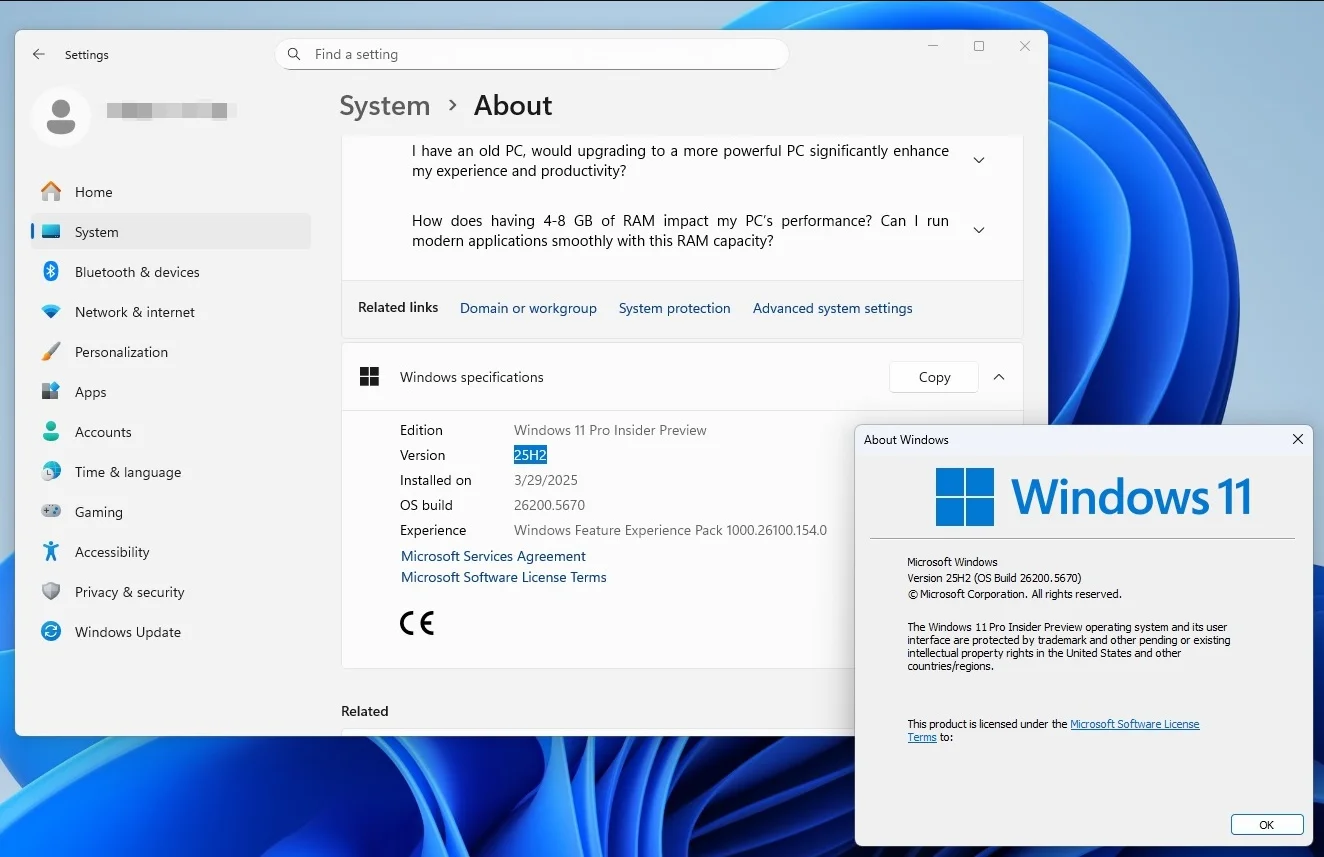
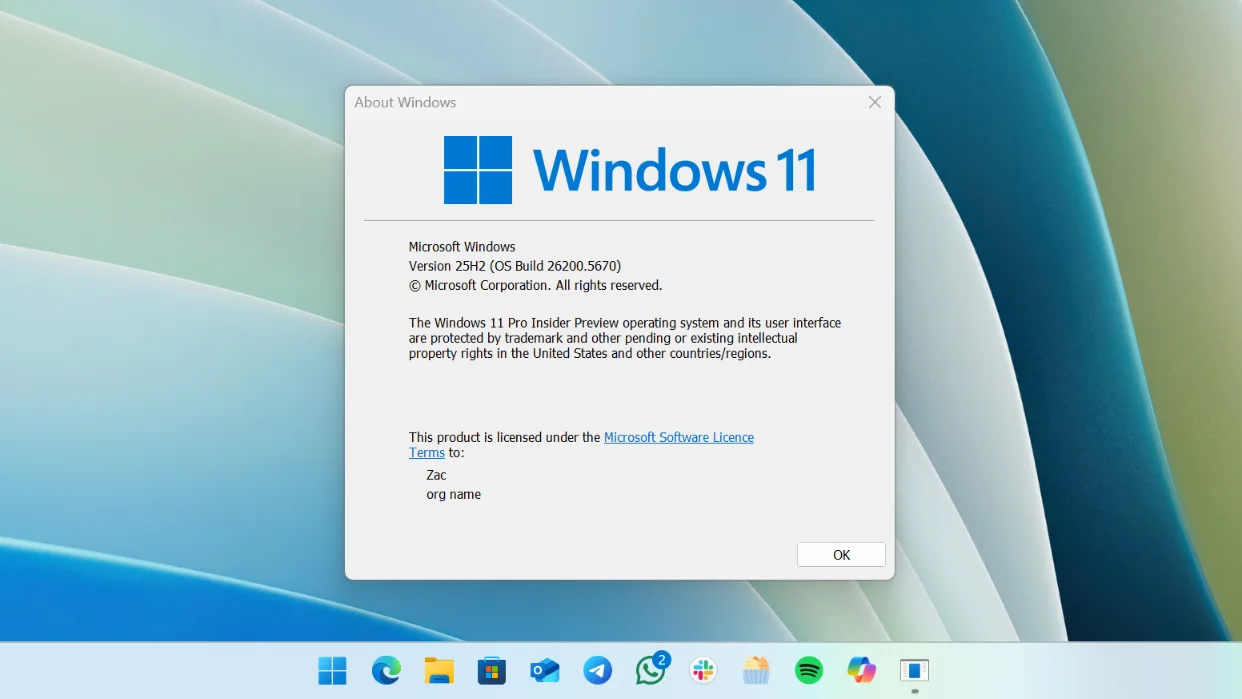
How to Install Windows 11?
The final Windows 11 Download 25H2 ISO file is available for download from various sources, including Microsoft’s support page. You can obtain it using the Media Creation Tool or with third-party programs like Rufus, which allows you to download ISO files for Windows 11, Windows 10, and earlier versions.
An ISO file contains the installation files, which are typically stored on physical media, such as a disc or USB flash drive. This file allows you to update other devices, install Windows 11 25H2 in a virtual system, or create bootable media. You can also mount the ISO file in File Explorer to begin the upgrade process.
In this article, you will learn how to obtain the Windows 11 2025 Update (version 25H2) ISO file using three different methods.
- Download using the Windows 11 Media Creation Tool
- Upgrade using the Windows 11 Upgrade Assistant
- Download the Windows 11 ISO image (boot disk image)
Update Windows 11 via Settings
You can update Windows 11 in two main ways:
- Update your current Windows 11 to the latest version
- Upgrade from Windows 10 to the latest version of Windows 11
Update Windows 11
If you’re using Windows 11, it means your PC is compatible with the next version of Windows 11 (version 2025) without any additional updates. Therefore, here are the simple steps to follow to upgrade:
- Open the Settings app.
- Go to Windows Update.
- Click the Check for updates button.
- The latest available updates will appear.
- Click the Download and install button to continue.
The update may take some time to download and install. Click Restart when it’s finished to restart your computer.
Download using the Windows 11 Media Creation Tool
The Media Creation Tool is another option for obtaining the Windows 11 version 2025 ISO file. This free tool, developed by Microsoft, allows you to create bootable media and obtain standalone ISO images of the operating system.
Microsoft has released the Media Creation Tool for downloading and upgrading to Windows 11. You can upgrade your current Windows operating system using the upgrade option. This will save your Windows files so you can restore them in the future (if needed) and upgrade to the latest version of Windows 11, keeping your applications, documents, and personal files in the same location and state as before the upgrade.
You can also download the latest ISO file or create bootable Windows 11 installation media using the Media Creation Tool. Downloading the Windows 11 ISO file is a more flexible option, as you can save and use it in various ways: mount it, use it to upgrade Windows 11 Download, or create a bootable USB/DVD drive from the ISO file using Rufus or your preferred tool for creating USB drives from Windows ISOs.
If you choose to create a bootable USB/DVD drive directly instead of downloading a Windows ISO image, you will need a USB drive with a minimum capacity of 8 GB. Remember to back up the data on the USB drive before starting the process of creating the Windows 11 installation media, as all data on the drive will be erased.
- Download the Windows 11 Media Creation Tool by clicking here.
- The Media Creation Tool will open; click the Accept button to agree to the terms and license.
- Before continuing, verify the default details for the computer where you want to install the ISO. To get Windows 11 version 2025 in your preferred language, uncheck the “Use the recommended options for this PC” box before starting the ISO download. When you’re ready, select Next.
- Select the ISO file option and click Next.
- Choose where you want to save the ISO file. Select a location with sufficient storage space and click Save. The Media Creation Tool will begin downloading the ISO file.
- Once the download is complete, you can exit the program by selecting Finish. After installation, the program may delete any remaining files. You can leave it running in the background without needing to monitor it.
After you have successfully downloaded the Windows 11 v25H2 ISO file, you may move on to the next step, which is to prepare a bootable device to perform a clean installation of Windows 11.
Post Comment